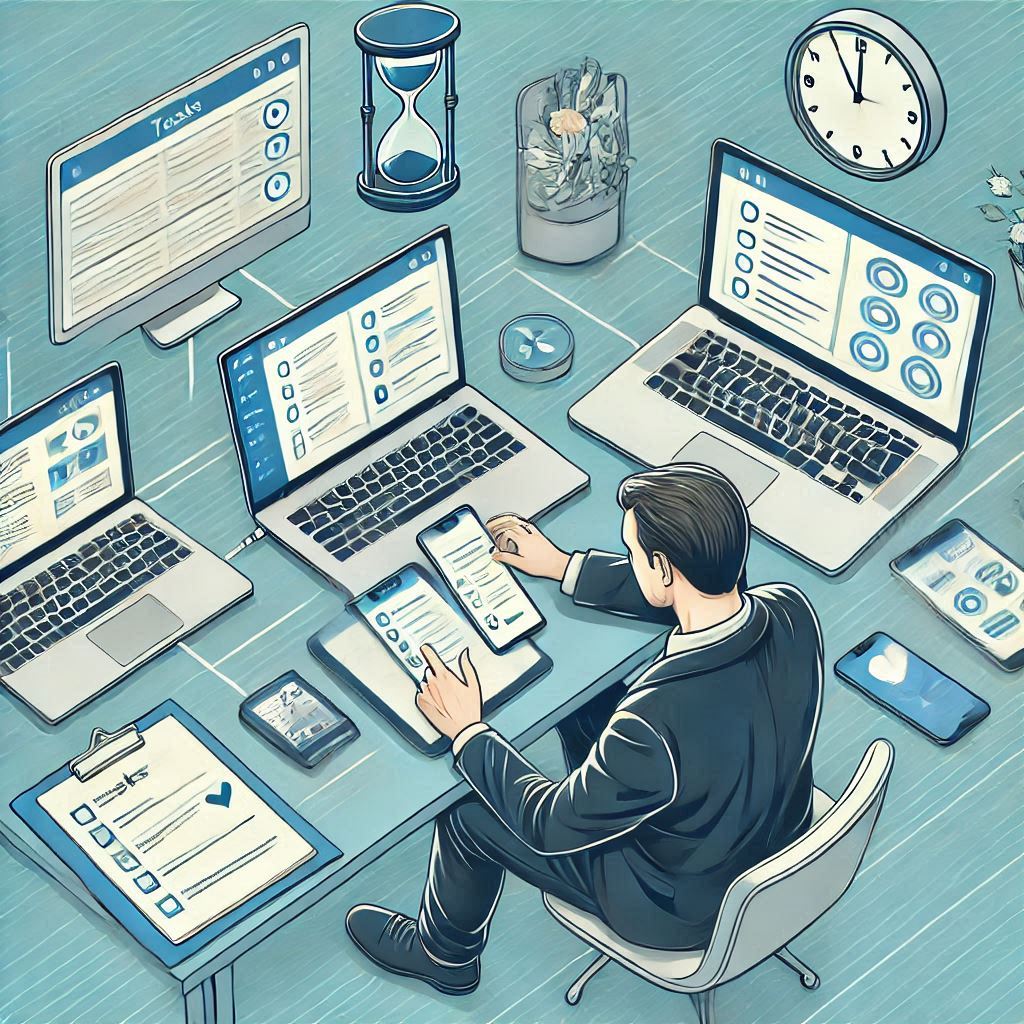
In today’s fast-paced world, managing tasks effectively across multiple devices is more critical than ever. Whether you’re switching between your phone, tablet, laptop, or desktop, staying organized and up-to-date ensures that you never miss a deadline or overlook an important detail. Synchronizing your tasks across devices might sound daunting, but with the right approach and tools, it can become seamless and highly efficient.
Why Synchronization is Essential for Productivity
Before diving into how to synchronize tasks, it’s important to understand the benefits:
- Consistency: Access the same task list from any device without worrying about outdated versions.
- Efficiency: Save time by eliminating the need to manually transfer information.
- Flexibility: Work wherever you are, whether at the office, at home, or on the go.
- Accountability: Ensure you’re always aligned with your team, no matter the device.
Step 1: Choose the Right Task Management Platform
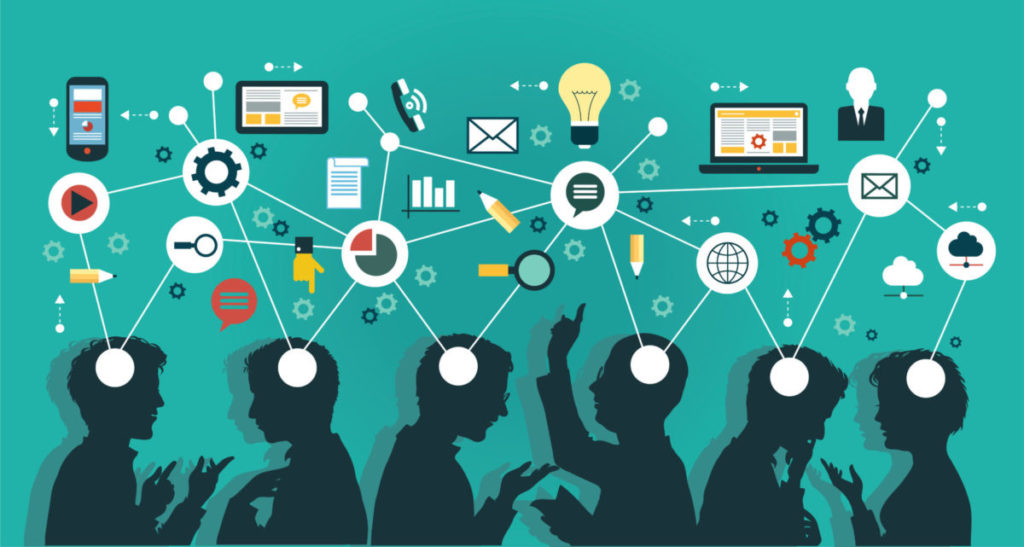
The foundation of synchronization lies in the task management platform you use. Many apps today offer cross-device functionality, ensuring your tasks are always up-to-date.
Features to Look For:
- Cloud-Based Storage: Ensures real-time updates across devices.
- Multi-Platform Availability: Works on iOS, Android, macOS, and Windows.
- Offline Access: Allows you to work even without internet connectivity.
| Popular Tools | Key Features |
|---|---|
| GGyess | Multi-device syncing, task prioritization, and team collaboration. |
| Todoist | Simple task lists with reminders. |
| Microsoft To Do | Integration with Microsoft apps and platforms. |
| Asana | Advanced project management tools for teams. |
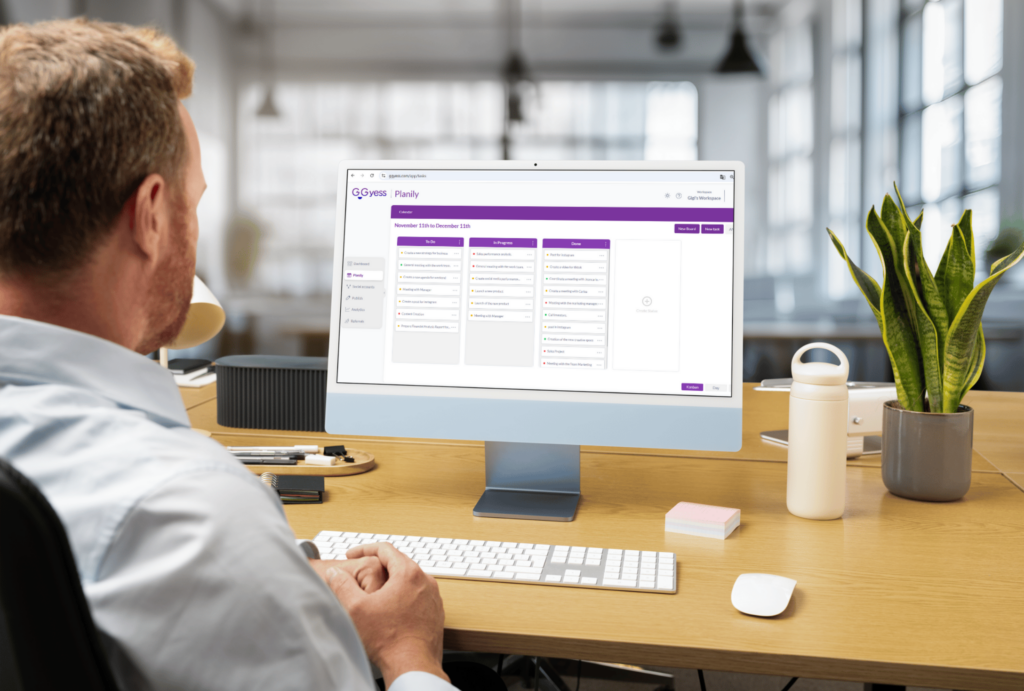
Among these, GGyess stands out for its seamless integration across platforms and its ability to align personal and team tasks effortlessly.
Step 2: Use Cloud Storage for Attachments and Notes
Tasks often come with additional details—documents, notes, or links. Using cloud storage solutions ensures these are accessible from all your devices.
Recommended Cloud Storage Options:
- Google Drive: Excellent for collaborative document editing.
- Dropbox: Reliable for sharing large files.
- OneDrive: Best for Windows users with integrated features.
Make sure your chosen task management app integrates with these services to keep everything centralized.
Step 3: Enable Automatic Sync Settings
Most task management platforms and productivity apps have automatic synchronization settings. Enabling these ensures updates happen in real-time.
How to Enable Automatic Sync:
- Go to your app’s settings.
- Locate the “Sync” or “Cloud” options.
- Turn on “Auto-Sync” and confirm your preferred account (e.g., Google, Apple, or a proprietary account).
- Test the sync feature by creating a task on one device and checking its presence on others.

Step 4: Leverage Device-Specific Features
Each device offers unique features that can enhance your task synchronization experience.
| Device | Unique Features |
|---|---|
| Smartphones | Push notifications and voice-to-task features. |
| Tablets | Larger screen space for detailed planning. |
| Desktops/Laptops | Keyboard shortcuts for quick entry. |
| Smartwatches | Quick reminders and on-the-go task updates. |
Utilizing these features ensures you make the most of each device while staying connected to your tasks.
Step 5: Establish a Routine for Task Updates
While synchronization tools are powerful, their efficiency depends on regular updates.
Tips for Maintaining Synced Tasks:
- Daily Check-Ins: Review and update your task list every morning and evening.
- Consolidate Notes: Transfer handwritten notes or offline tasks into your app promptly.
- Archive Completed Tasks: Keeps your active list clean and focused.
Step 6: Troubleshoot Common Synchronization Issues
Even the best systems encounter occasional hiccups. Here’s how to resolve common problems:
- Problem: Tasks not syncing in real-time.
- Solution: Check your internet connection and ensure the app is updated.
- Problem: Duplicate tasks appearing across devices.
- Solution: Clear cache or manually delete duplicates to reset syncing.
- Problem: Tasks disappear after syncing.
- Solution: Check app settings to ensure no filters are hiding completed tasks.

Visualizing Your Workflow
| Task | Device Used | App/Tool |
|---|---|---|
| Daily planning | Laptop | GGyess |
| Midday check-in | Smartphone | GGyess Mobile |
| Reviewing attachments | Tablet | Google Drive |
| Quick reminders | Smartwatch | GGyess Alerts |
By organizing tasks this way, you can create a fluid workflow that adapts to your needs.
Step 7: Integrate Task Management with Other Productivity Tools
To truly streamline your workflow and ensure seamless synchronization, consider integrating your task management tools with other productivity apps. Many platforms support integrations that allow data to flow effortlessly between apps, reducing manual input and errors.
Examples of Integrations to Use:
- Email Integration: Automatically turn emails into tasks. For instance, connect Gmail or Outlook with your task management app to create tasks directly from your inbox.
- Calendar Sync: Align deadlines and meetings with your digital calendar (e.g., Google Calendar, Apple Calendar) to avoid overlaps.
- Messaging Apps: Use Slack, Microsoft Teams, or other communication tools to assign and update tasks directly from chat discussions.
- Document Tools: Link apps like Google Docs or Microsoft Word to tasks for easy access to relevant files.
Table of Productivity Integrations:
| Integration Type | Example Apps | How It Helps |
|---|---|---|
| Gmail, Outlook | Turns emails into actionable tasks | |
| Calendar | GGyess, Google Calendar, iCal | Keeps deadlines visible |
| Messaging | Slack, Microsoft Teams | Enables task creation from team discussions |
| Document Management | Google Drive, Dropbox | Provides direct access to related documents |
Step 8: Adopt Best Practices for Multi-Device Task Management
Now that you understand the tools and features, it’s crucial to implement best practices that maximize their potential.
- Use a Single Task Manager: Avoid using multiple apps for task tracking, as this can create confusion and duplicate efforts. Stick to one reliable platform like GGyess.
- Label and Categorize Tasks: Use tags, labels, or folders to group tasks by priority, project, or team member.
- Set Notifications Wisely: Customize notifications to avoid being overwhelmed but still stay informed about critical updates.
- Backup Regularly: While cloud-based apps are secure, having periodic backups ensures no data is lost in case of technical issues.
Example of Task Categories in GGyess:
- Priority Tasks: Deadlines within 24 hours.
- Team Collaboration: Tasks requiring input from colleagues.
- Long-Term Goals: Strategic projects spanning weeks or months.
Step 9: Plan for Offline Scenarios
While synchronization relies heavily on internet connectivity, there will be moments when you’re offline. Preparing for such scenarios ensures that your productivity doesn’t halt unexpectedly.
Tips for Working Offline:
- Enable Offline Mode: Apps like Google Drive, Notion, and GGyess support offline work, syncing updates once you’re reconnected.
- Download Key Files: Keep essential documents stored locally for quick access.
- Maintain a Paper Backup: For critical deadlines, jot down tasks in a notebook as a fail-safe.
Step 10: Regularly Audit Your Task Management System
Over time, your needs and workflows might evolve, requiring adjustments to your task management system. Performing regular audits ensures that your tools and processes stay effective.
What to Evaluate:
- Tool Performance: Are your apps still meeting your needs, or is it time to upgrade?
- Feature Utilization: Are you using all available features effectively, or is there untapped potential?
- Team Feedback: Gather insights from colleagues about what works and what could improve.
Advanced Tips for Device Synchronization
Creating a Hierarchical System of Tasks
When juggling multiple devices, it’s easy for tasks to feel scattered. A hierarchical system brings clarity by organizing tasks into larger projects and smaller actionable steps.
Example:
- Project: Launch Social Media Campaign
- Task 1: Create content calendar.
- Task 2: Design posts.
- Task 3: Schedule posts.
- Task 4: Monitor analytics and adjust strategy.
By breaking tasks into smaller parts, you can distribute responsibilities across devices without losing track of the bigger picture.
Optimizing Battery Life While Staying Synced
Synchronization apps often consume significant battery life, especially on mobile devices. Here’s how to balance syncing and power efficiency:
- Sync Intervals: Adjust sync frequency to avoid constant background activity.
- Low Power Mode: Activate power-saving features on your device.
- Wi-Fi Preference: Use Wi-Fi over cellular data for syncing tasks to conserve energy and data usage.
The Role of GGyess in Multi-Device Synchronization
With its robust features, GGyess simplifies multi-device task management by integrating advanced tools for scheduling, collaboration, and tracking. It supports everything from real-time updates to offline editing, making it an excellent choice for professionals and teams. GGyess’s mobile and desktop applications ensure consistent access, no matter where you work.
Conclusion: Take Control of Your Workflow
Synchronizing tasks across devices doesn’t just save time—it transforms how you work. By leveraging the right tools, integrating systems, and adopting best practices, you can create a seamless workflow that adapts to your needs. Whether you’re a solo entrepreneur or part of a large team, synchronization empowers you to focus on what matters most: achieving your goals.